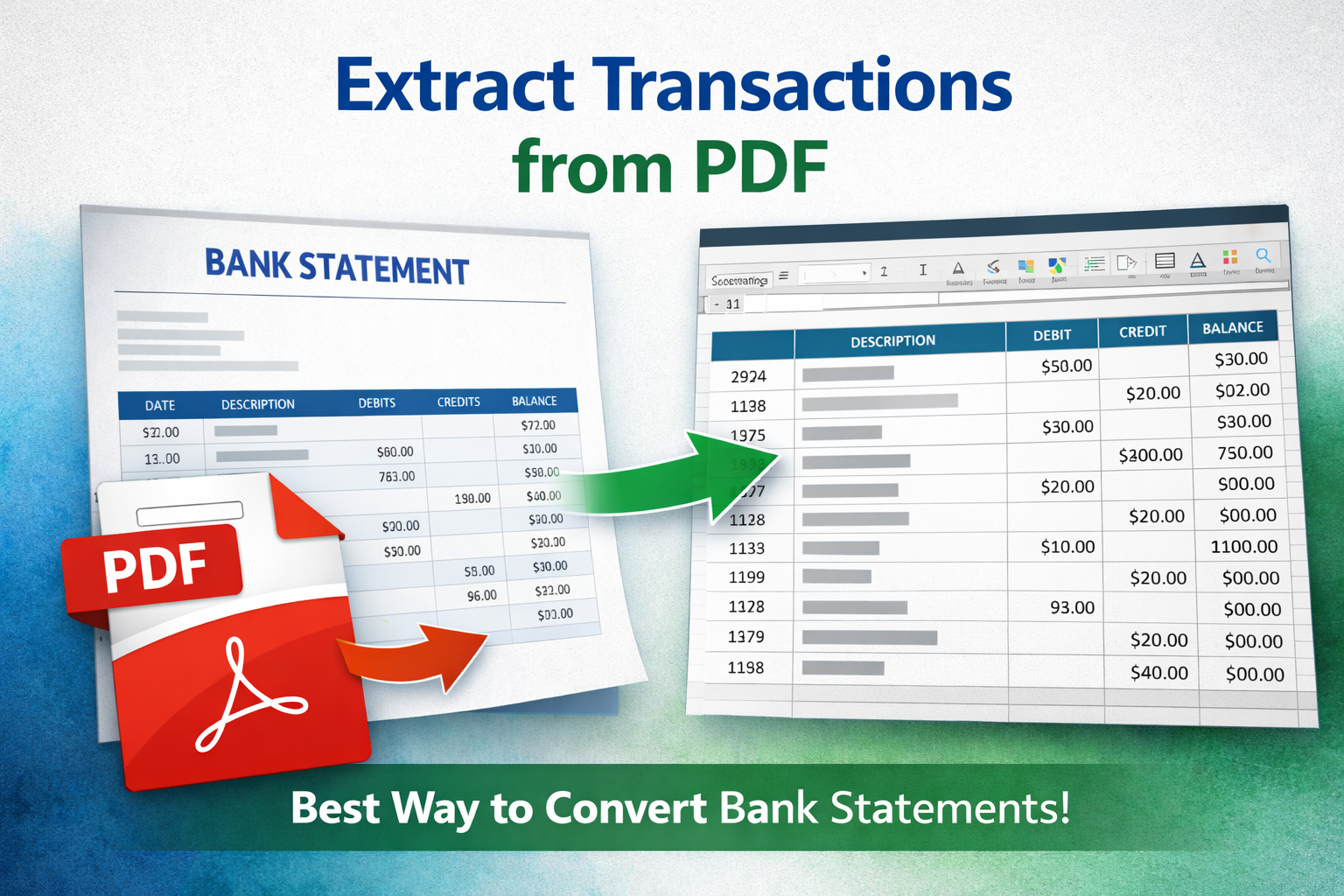
If you need to extract transactions from PDF bank statements, you're not alone. Millions of business owners, accountants, and freelancers struggle with converting static PDF statements into structured Excel or CSV files.
If your goal is to convert full bank statements into Excel, see our complete guide on how to convert bank statement PDF to Excel.
In this guide, we'll break down the best way to extract transactions from PDF, compare manual vs automated methods, and explain when you need bank statement OCR.
Why Extract Transactions from PDF?
Bank statements are typically delivered as PDFs. While great for viewing and archiving, they are not ideal for:
- Importing into accounting software
- Budget analysis
- Tax preparation
- Reconciliation
- Business reporting
Structured data (Excel or CSV) allows sorting, filtering, pivot tables, and automation.
Method 1: Manual Copy & Paste
You can try copying tables directly from the PDF into Excel.
Problems:
- Columns break
- Amounts misalign
- Negative values get corrupted
- Multi-page statements fail
- Extremely time-consuming
This is not scalable or reliable.
Method 2: Use Excel Import
Excel allows importing from PDF via Data ? Get Data ? From PDF.
Limitations:
- Doesn't work well with scanned PDFs
- Often misses running balances
- Struggles with complex layouts
Method 3: Automated Extraction Tool (Best Option)
The most accurate way to extract transactions from PDF is using a specialized extraction tool built specifically for bank statements.
These tools:
- Automatically detect transaction tables
- Preserve dates, descriptions, debits, credits, balances
- Handle multi-page PDFs
- Support different bank layouts
- Apply bank statement OCR when needed
When Do You Need Bank Statement OCR?
If your PDF is scanned or image-based, text cannot be directly extracted. You need bank statement OCR (Optical Character Recognition) to convert the image into readable data.
For scanned files, you will need bank statement OCR before extraction can work properly.
Without OCR:
- No selectable text
- No table detection
- No automation possible
Advanced systems detect this automatically.
PDF to CSV Bank Statement Conversion
Many accounting platforms require CSV format. When performing PDF to CSV bank statement conversion, make sure:
- Date format is consistent (YYYY-MM-DD recommended)
- Debit/credit signs are accurate
- Currency symbols are removed
- Numbers are stored as numeric values
Common Problems and Fixes
| Problem | Solution |
|---|---|
| Missing transactions | Use specialized extraction tool |
| Numbers appear as text | Convert columns to numeric in Excel |
| Scanned statement fails | Enable bank statement OCR |
| Incorrect debit/credit | Check bank column structure |
Final Verdict: What Is the Best Way?
The best way to extract transactions from PDF is using a purpose-built bank statement extraction system that automatically handles layout detection, OCR, and structured export to Excel or CSV.
Manual methods are slow and error-prone. Automation saves hours and prevents costly accounting mistakes.
If you regularly work with bank statements, investing in proper PDF extraction software is essential.