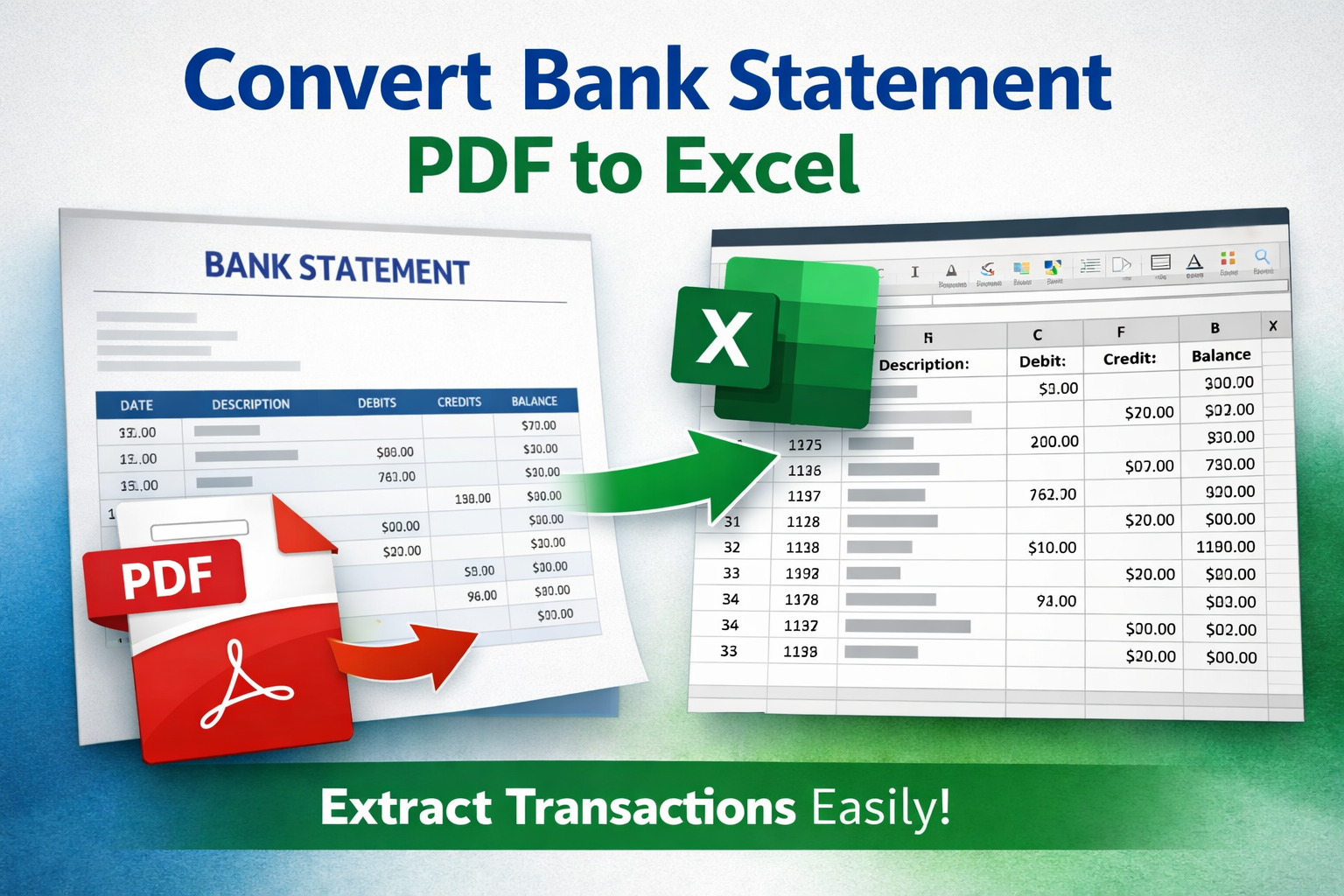
If you need to convert bank statement PDF to Excel, you're likely preparing reports, reconciling transactions, importing data into accounting software, or analyzing expenses.
Bank statements are typically delivered as PDFs — great for viewing, but not designed for structured data analysis. This guide explains exactly how to convert a bank statement PDF to Excel or CSV, including solutions for scanned statements using bank statement OCR.
We’ll also cover real-world examples such as Chase statement to Excel and Wells Fargo statement to CSV.
Why Convert a Bank Statement PDF to Excel?
Most banks provide statements as PDFs. They're great for viewing and printing — but not for:
- Budgeting
- Accounting
- Tax preparation
- Business reconciliation
- Uploading to QuickBooks or Xero
- Analyzing spending trends
When you extract transactions from PDF into Excel or CSV, you can:
- Sort by date or category
- Filter expenses
- Create pivot tables
- Import into accounting software
- Automate reporting
Method 1: Manual Copy & Paste (Not Recommended)
You can try copying tables directly from the PDF into Excel.
Problems:
- Columns break
- Numbers misalign
- Negative values get corrupted
- Dates format incorrectly
- Very time-consuming
Method 2: Use Excel's Built-In PDF Import
- Open Excel
- Go to Data → Get Data → From File → From PDF
- Select your statement
- Choose detected tables
Limitations:
- Doesn't work well with scanned statements
- Struggles with multi-page layouts
- Fails on complex bank formats
- Often misses balances
Method 3: Use a Dedicated Extraction Tool (Recommended)
The fastest and most reliable way to convert bank statement PDF to Excel is using a specialized extraction tool designed specifically for financial documents.
If you want a detailed breakdown of approaches, read our guide on best way to extract transactions from PDF.
- Detect transaction tables automatically
- Preserve dates, descriptions, amounts, balances
- Support multiple banks
- Handle multi-page PDFs
- Apply bank statement OCR if needed
Comparison: Manual vs Excel vs Dedicated Tool
| Method | Accuracy | Handles Scanned PDFs | Multi-Page Support | Time Required |
|---|---|---|---|---|
| Manual Copy/Paste | Low | No | No | High |
| Excel Import | Medium | No | Limited | Medium |
| Dedicated Extraction Tool | High | Yes (with OCR) | Yes | Low |
Chase Statement to Excel
If you're converting a Chase statement to Excel, you'll notice:
- Multi-column transaction layout
- Running balance column
- Separate credits and debits
- Summary pages
See our full guide: Chase statement to Excel.
Wells Fargo Statement to CSV
When converting a Wells Fargo statement to CSV, common challenges include:
- Wrapped transaction descriptions
- Multi-line merchant names
- Different layouts for checking vs credit cards
Read more: Wells Fargo statement to CSV.
What If the Statement Is Scanned?
If your PDF is image-based, you'll need bank statement OCR.
- No tables detected without OCR
- No text extraction possible
- Copy/paste fails
Learn more in our guide: Bank statement OCR explained.
Best Output Format: Excel or CSV?
| Use Case | Best Format |
|---|---|
| Personal budgeting | Excel (.xlsx) |
| Accounting software import | CSV |
| Tax reporting | Excel |
| Large automation workflows | CSV |
If importing into accounting software, read our guide on PDF to CSV for QuickBooks.
Frequently Asked Questions
Can I convert a bank statement PDF to Excel for free?
Some tools allow limited free conversion. However, complex layouts and scanned PDFs often require specialized extraction software with OCR.
Why does Excel fail to import my bank statement?
Excel struggles with multi-page tables, wrapped descriptions, and image-based PDFs. Dedicated extraction tools handle these scenarios more reliably.
Is it safe to upload bank statements online?
Always use secure, encrypted platforms and avoid sharing financial documents over unsecured networks.
Can I convert a scanned bank statement to Excel?
Yes, but you must use OCR first to convert the scanned image into readable data.
Step-by-Step: Convert Bank Statement PDF to Excel
- Upload your bank statement PDF
- Choose output format (Excel or CSV)
- Let the system extract transactions from PDF
- Download the structured file
- Open in Excel or import into accounting software
Final Thoughts
Whether you need to convert bank statement PDF to Excel, perform a pdf to csv bank statement conversion, or handle scanned statements with OCR, using the right workflow saves hours and prevents costly errors.
Automating bank statement extraction is essential for modern financial workflows.