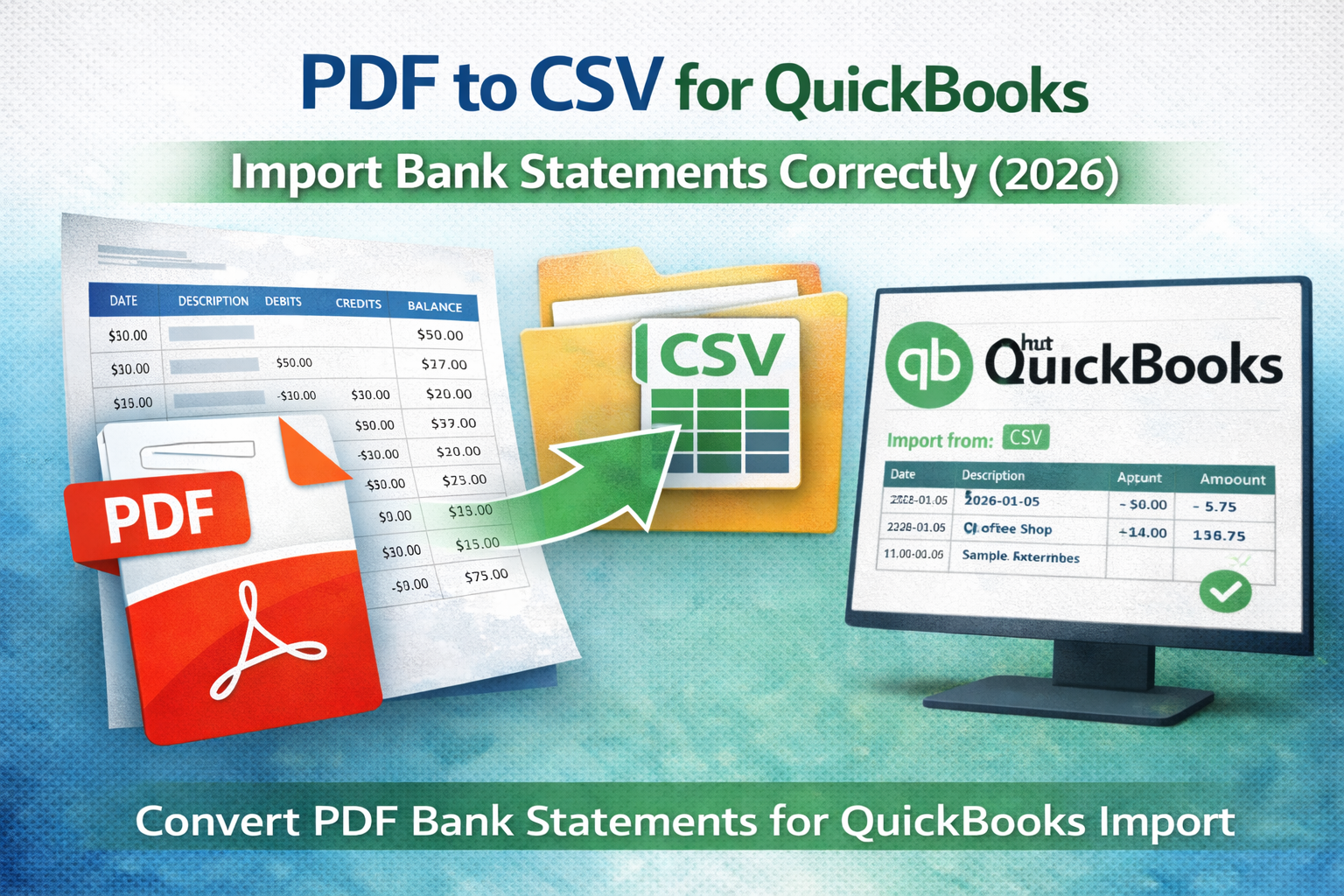
If you're searching for PDF to CSV for QuickBooks, you likely want one thing: import your bank statement transactions into QuickBooks without errors.
QuickBooks does not accept PDF bank statements directly. You need a clean, structured CSV file that matches what QuickBooks expects. This guide explains the best way to convert a bank statement PDF to CSV and import it into QuickBooks correctly.
Why QuickBooks Can't Import PDF Bank Statements
PDFs are designed for reading and printing, not data import. Even if your statement looks like a table, QuickBooks needs structured rows and columns (CSV) to import transactions.
That is why the workflow is:
- Extract transactions from the PDF
- Export to CSV
- Import CSV into QuickBooks
QuickBooks CSV Format: What Matters
QuickBooks import rules vary slightly by version and import flow, but these guidelines prevent most issues:
- One row per transaction (no line breaks inside cells)
- Consistent date format (MM/DD/YYYY or YYYY-MM-DD)
- Amount is numeric (no currency symbols)
- Header row included (clear column names)
- No merged cells (common issue when copying from PDF)
Recommended CSV Columns
Most users succeed with a simple structure like this:
| Date | Description | Amount |
|---|---|---|
| 2026-01-05 | Coffee Shop | -5.75 |
| 2026-01-06 | Client Payment | 2500.00 |
If your statement provides separate debit and credit columns, you can either:
- Combine into a single signed Amount column (recommended), or
- Keep separate Debit and Credit columns if your workflow supports it
Best Way to Convert PDF to CSV for QuickBooks
The most reliable method is using a tool designed to extract transactions from PDF bank statements and export a clean CSV.
These tools handle:
- Multi-page statements
- Wrapped descriptions
- Balance columns (optional)
- Debit/credit normalization
- Clean CSV output (one row per transaction)
For a full comparison of methods, read: Best way to extract transactions from PDF.
Common QuickBooks Import Errors (And How to Fix Them)
| Error / Issue | Fix |
|---|---|
| Dates not recognized | Use a consistent format (YYYY-MM-DD recommended) |
| Amounts import as text | Remove $ and commas, ensure numeric values |
| Rows are merged | Remove line breaks in Description; keep one row per transaction |
| Duplicate transactions | Check for repeated headers across pages; remove extra header rows |
| Missing transactions | Use extraction tool instead of copy/paste |
What If Your Bank Statement PDF Is Scanned?
If your PDF is scanned (image-based), you need bank statement OCR before extraction can work.
OCR converts the scanned image into machine-readable text so your transactions can be structured and exported properly.
Read more here: Bank statement OCR explained.
PDF to CSV Bank Statement: Best Practices
- Ensure each transaction is a single CSV row
- Normalize amounts to a single signed Amount column
- Keep descriptions clean (no newlines)
- Verify the date column matches QuickBooks expectations
- Spot-check a few transactions after import
Related Guides
Final Thoughts
QuickBooks imports go smoothly when your CSV is clean, consistent, and structured correctly. Converting PDF to CSV for QuickBooks is easiest when you use a workflow designed for bank statement extraction, especially for multi-page or scanned PDFs.