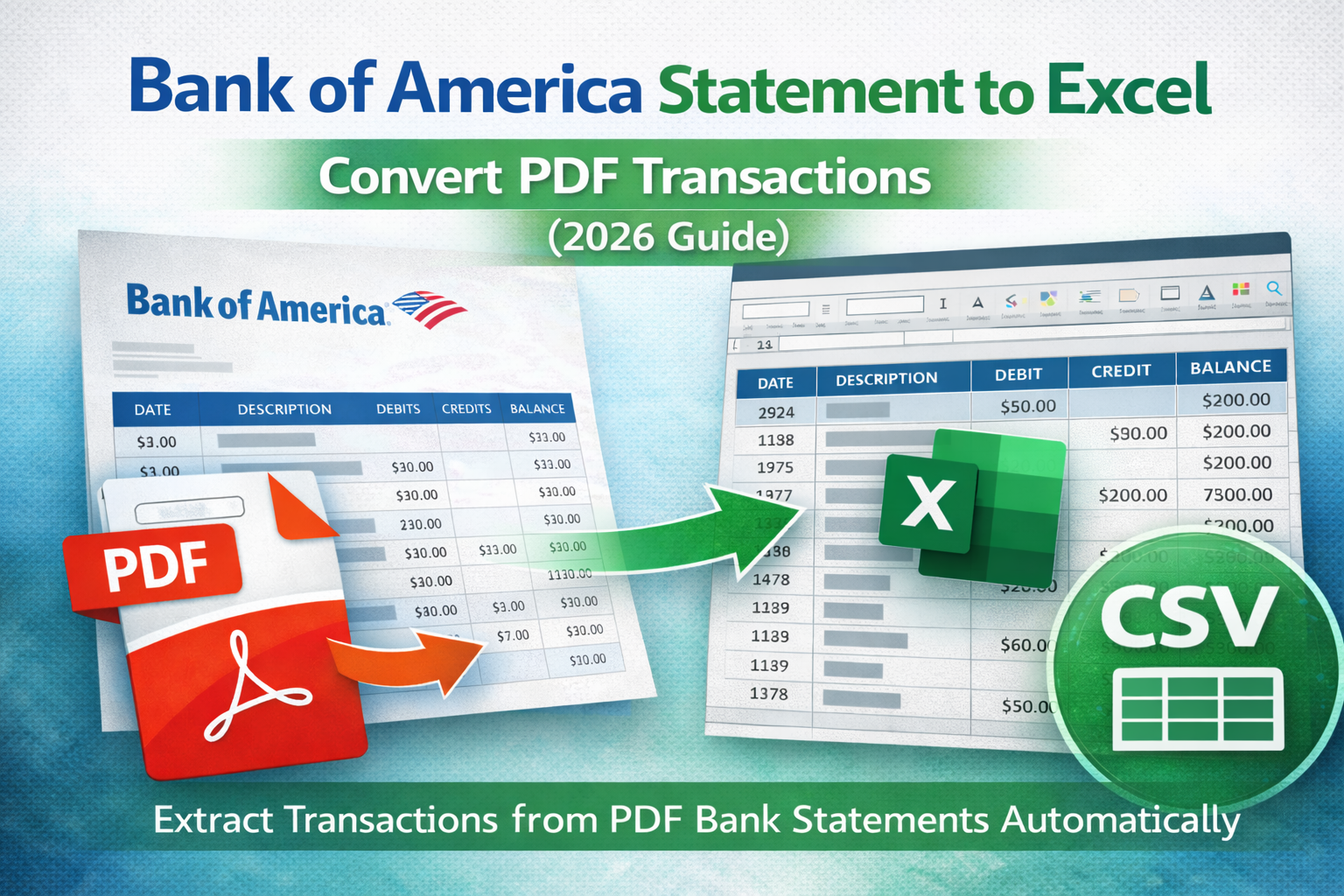
If you need to convert a Bank of America statement to Excel, your goal is usually the same: get clean transaction data you can sort, filter, reconcile, or import into accounting software.
This guide shows the best ways to extract transactions from a Bank of America PDF statement and export them into Excel (or CSV) with minimal cleanup.
Why Convert a Bank of America Statement to Excel?
- Budgeting and personal finance tracking
- Business bookkeeping and reconciliation
- Tax preparation and reporting
- Import into accounting tools
- Faster audits and expense reviews
PDFs are designed for viewing. Excel is designed for working with data.
Common Issues in Bank of America PDF Statements
Depending on account type (checking vs credit card) and statement version, you may see:
- Multi-page transaction tables
- Wrapped descriptions (merchant details over multiple lines)
- Separate debit/credit handling (or signed amounts)
- Fees and adjustments listed in separate sections
- Different layouts for credit cards vs deposit accounts
Method 1: Copy/Paste (Not Recommended)
Copying from PDF into Excel often breaks columns and creates merged rows. This typically leads to manual cleanup, which defeats the purpose of conversion.
Method 2: Import PDF into Excel
Excel can import PDF tables via Data → Get Data → From PDF.
Works best when: the PDF is text-based and the table layout is clean.
Fails when: the statement is scanned, has multi-line rows, or spans multiple pages.
Method 3: Use a Bank Statement Extraction Tool (Best Option)
The most reliable approach is using a tool designed to extract transactions from PDF bank statements.
These tools typically:
- Detect tables automatically
- Preserve dates, descriptions, debits/credits, balances
- Handle multi-page layouts
- Export to Excel (.xlsx) or CSV
- Reduce formatting errors and missing rows
If you want a broader comparison of approaches, read: Best way to extract transactions from PDF.
What If the Statement Is Scanned?
If your statement is scanned (image-based), you'll need bank statement OCR to convert it into readable text before transactions can be extracted accurately.
Learn how OCR works here: Bank statement OCR explained.
Bank of America Statement to Excel vs CSV
Use Excel if you want analysis (filtering, pivot tables). Use CSV if you plan to import into software that requires CSV format.
If exporting CSV, aim for:
- Consistent date format (YYYY-MM-DD recommended)
- Numeric amounts (no currency symbols)
- One row per transaction (no line breaks in description)
Related Guides
Final Thoughts
Converting a Bank of America statement to Excel is easiest when you use a workflow designed for bank statement extraction. It saves time, reduces errors, and produces clean data you can trust.