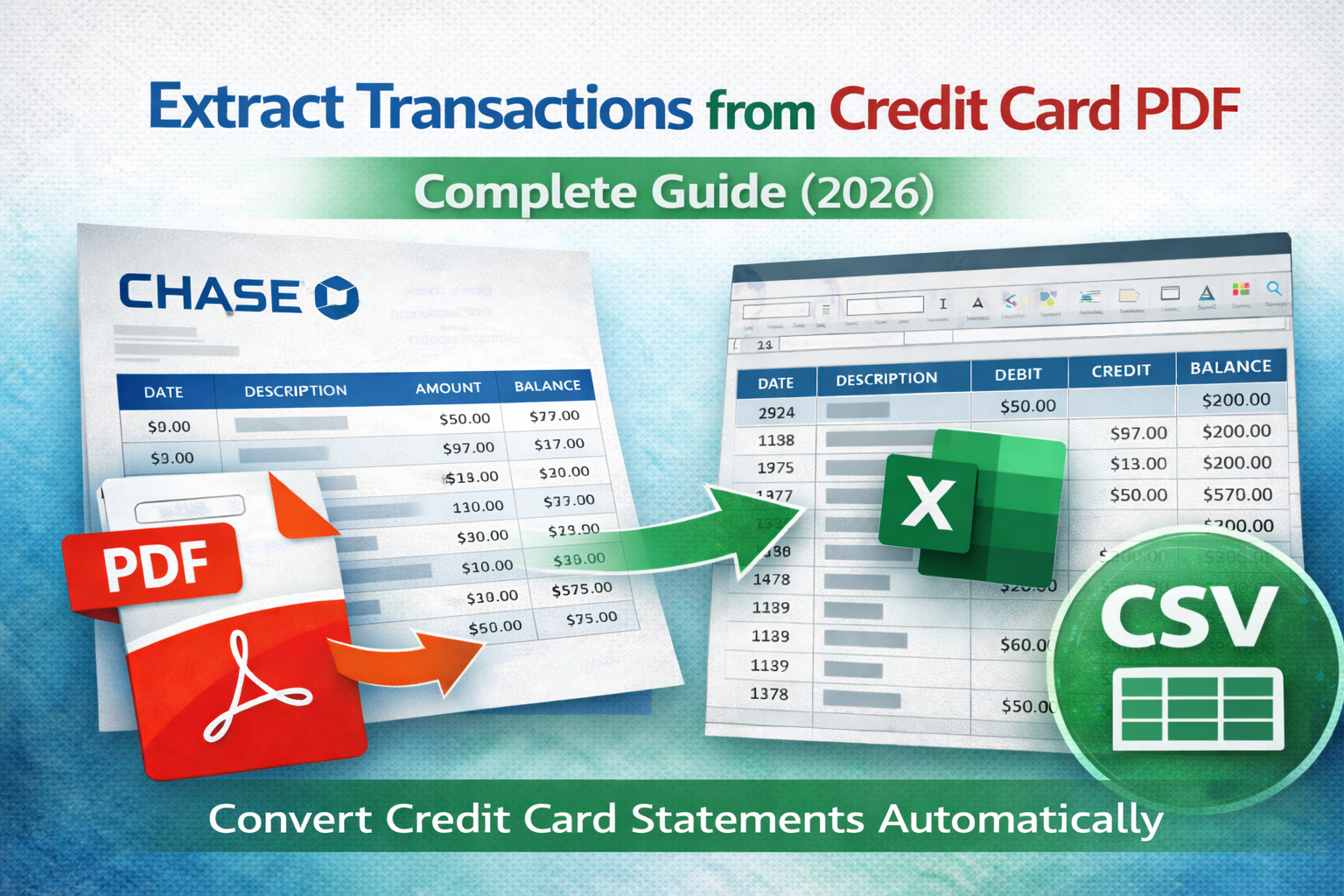
If you need to extract transactions from a credit card PDF, you are likely preparing expense reports, reconciling business purchases, or importing data into accounting software.
Credit card statements are typically delivered as PDFs, but they are not designed for structured data analysis. This guide explains how to convert credit card statement PDFs into Excel or CSV format accurately.
Why Extract Transactions from Credit Card PDFs?
- Track business expenses
- Reconcile monthly charges
- Prepare tax documentation
- Import into accounting software
- Identify recurring subscriptions
Manual copy-paste is slow and error-prone. Automated extraction saves hours every month.
Common Challenges in Credit Card Statements
- Multi-line merchant descriptions
- Separate purchase and payment sections
- Credits and refunds formatted differently
- Foreign transaction fees listed separately
- Multi-page layouts
Without proper formatting detection, transaction rows can break or merge incorrectly.
Method 1: Import PDF into Excel
Excel allows importing tables from PDFs. However:
- It may not detect multi-page tables correctly
- Wrapped descriptions often split into multiple rows
- Scanned PDFs will not import properly
Method 2: Use a Dedicated Extraction Tool (Best Option)
The most reliable way to extract transactions from credit card PDF statements is using a tool built specifically for financial documents.
These tools:
- Automatically detect transaction tables
- Merge wrapped descriptions
- Preserve debit/credit accuracy
- Handle refunds and adjustments properly
- Export to Excel (.xlsx) or CSV
For a broader comparison, see our guide on Best way to extract transactions from PDF.
What If the Credit Card Statement Is Scanned?
If the statement is image-based, you will need bank statement OCR (Optical Character Recognition) before transactions can be extracted correctly.
Learn more here: Bank statement OCR explained.
Exporting to CSV for Accounting Software
When converting a credit card PDF to CSV, ensure:
- Dates are consistent (YYYY-MM-DD recommended)
- Amounts are numeric (no currency symbols)
- Refunds are correctly signed
- Each transaction appears in one row
Related Guides
- How to convert bank statement PDF to Excel
- Chase statement to Excel
- Wells Fargo statement to CSV
- Bank of America statement to Excel
Final Thoughts
Extracting transactions from a credit card PDF does not need to involve manual data entry. With the right extraction workflow, you can automate conversion and produce clean, structured financial data every month.